How to Extract Phone Numbers from Google Maps ?
Updated 8/24/2026
One click to extract data from Google Maps for free.
Access detailed location data in seconds.
When it comes to local outreach, the most valuable asset is the phone number. If you have direct lines to real businesses, you can start making calls right away—no forms, no "contact us" hoops, just a straightforward connection. Google Maps is the source for these numbers, with each business listing providing direct contact info, organized by category and location. That's why sales teams, local SEO agencies, marketers, recruiters, and local service providers all use Google Maps as a primary tool for sourcing leads and phone numbers.
The catch is volume. Copying numbers off listings one at a time is slow, and mistakes creep in. This guide covers how to extract phone numbers from Google Maps into a clean list you can actually call, and how to extract business phone numbers in bulk, using the Google Maps Scraper as the main method.
What Phone Number Data Can You Extract?
You don't just get a column of digits. Each listing comes with the context that makes local business phone numbers worth calling, which is a big part of why how to extract phone numbers from Google Maps matters more than just grabbing raw digits. For every business, you can pull:
| Field | Why it matters for outreach |
|---|---|
| Business name | Who you're calling |
| Phone number | The direct line, the reason you're here |
| Address | Where they are, useful for routing or local relevance |
| Website | A quick way to research before you dial |
| Category | Confirms the business fits your target list |
| Rating | Light context on how the business is perceived |
| Review count | A rough sign of how active the listing is |
| Location | Coordinates for mapping or territory planning |
That mix is what turns a phone list into a prospect list. You can sort by category, filter by area, and open a website before you call, all from one file. Ratings and review counts are context, not a verdict on the business, so treat them as a way to prioritize rather than a score.
Best Way to Extract Phone Numbers: Google Maps Phone Scraper
The Google Maps Scraper is the fastest route for most people learning how to extract phone numbers from Google Maps for the first time. It's a Google Maps scraper online, so it runs in the cloud with nothing to install and no code to write. You describe the businesses you want, and it hands back a spreadsheet.
The workflow:
- Enter a business type or keyword with a target location. Something like "dentist in New York", "auto repair in China", or "law firm in Pakistan".
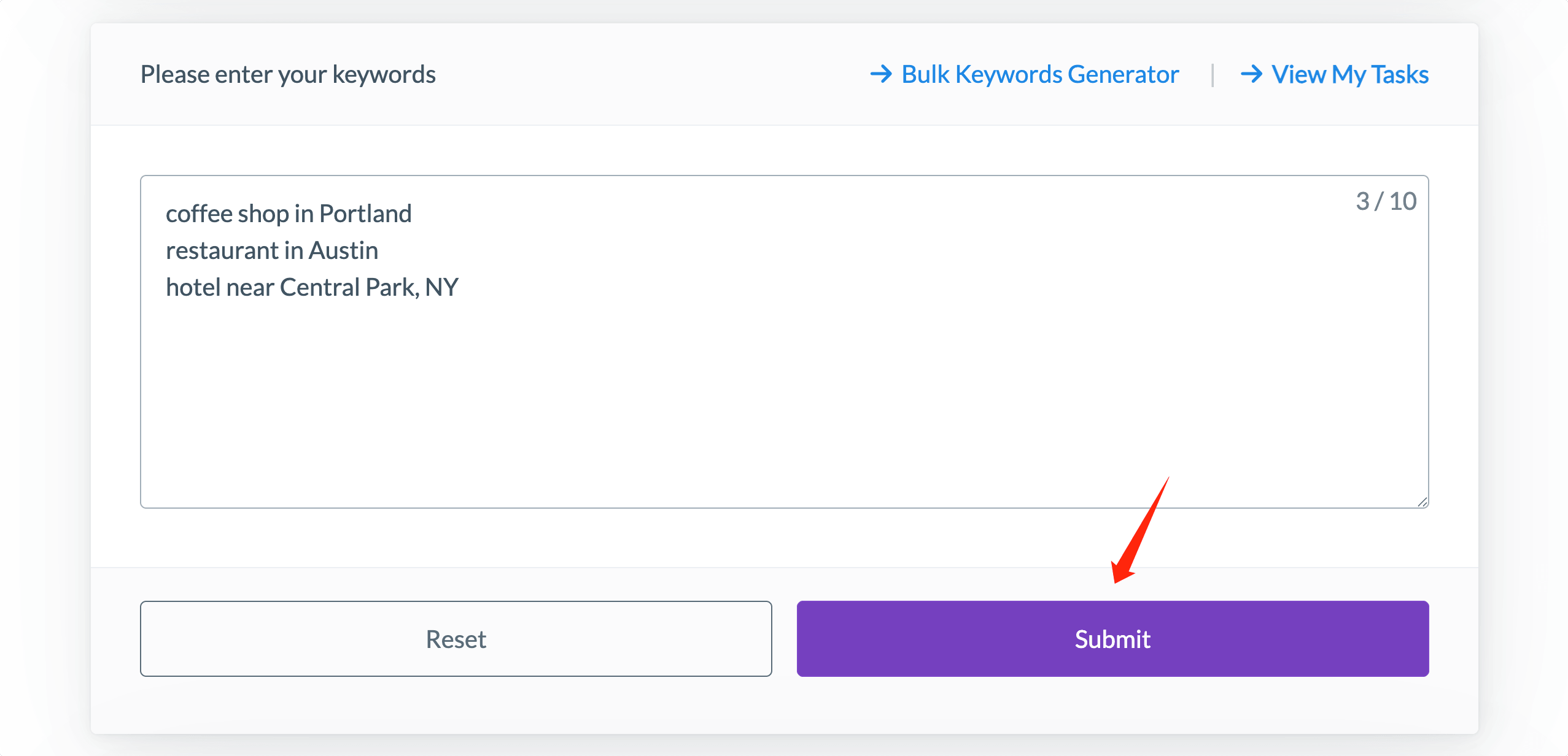
- Click the Submit button. It processes on our servers, so you can queue several keywords and let them run.
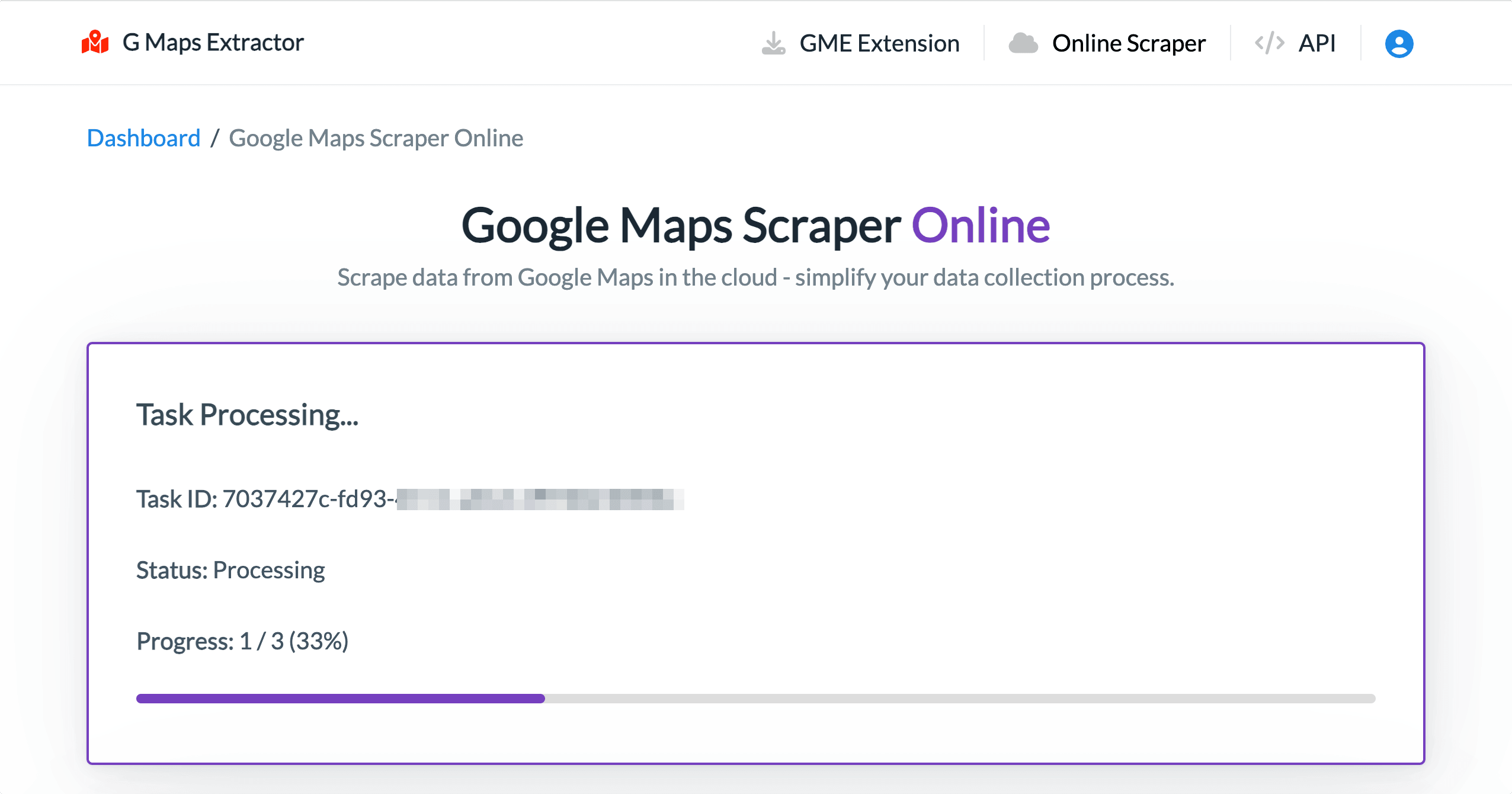
- Once completed, preview the business results. Check the listings look right before the full export.
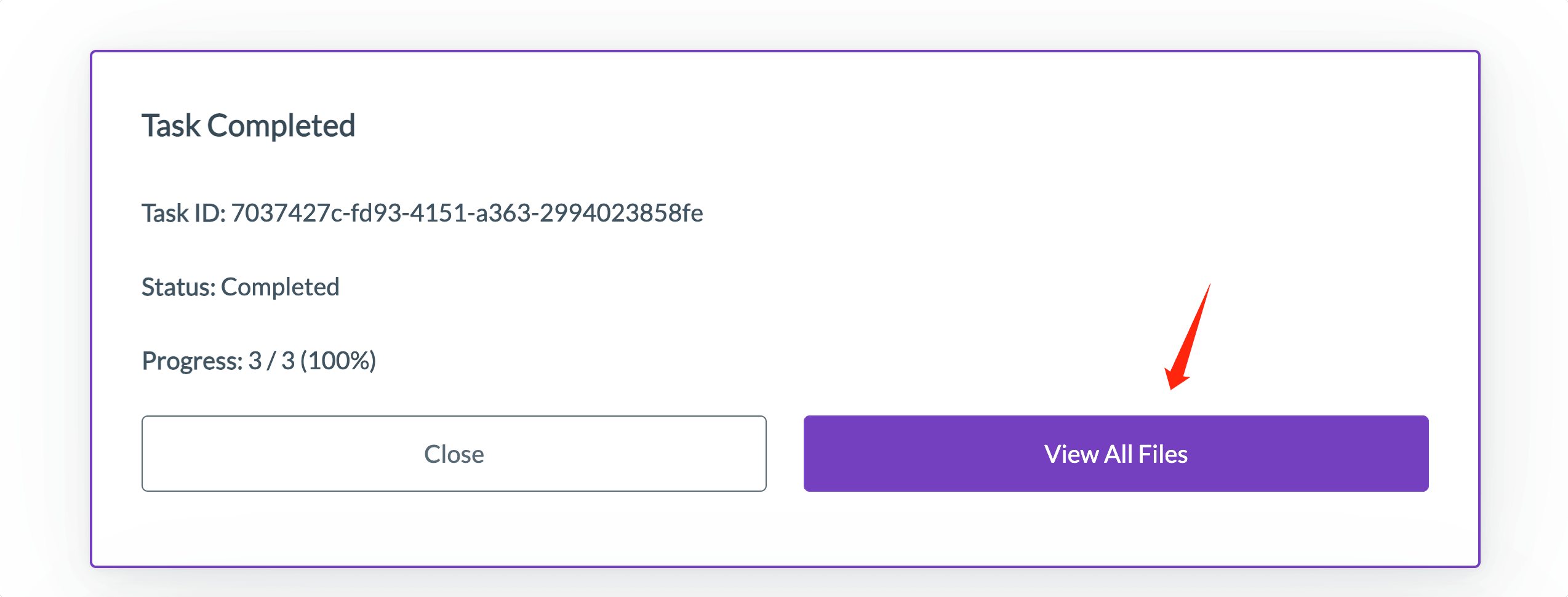
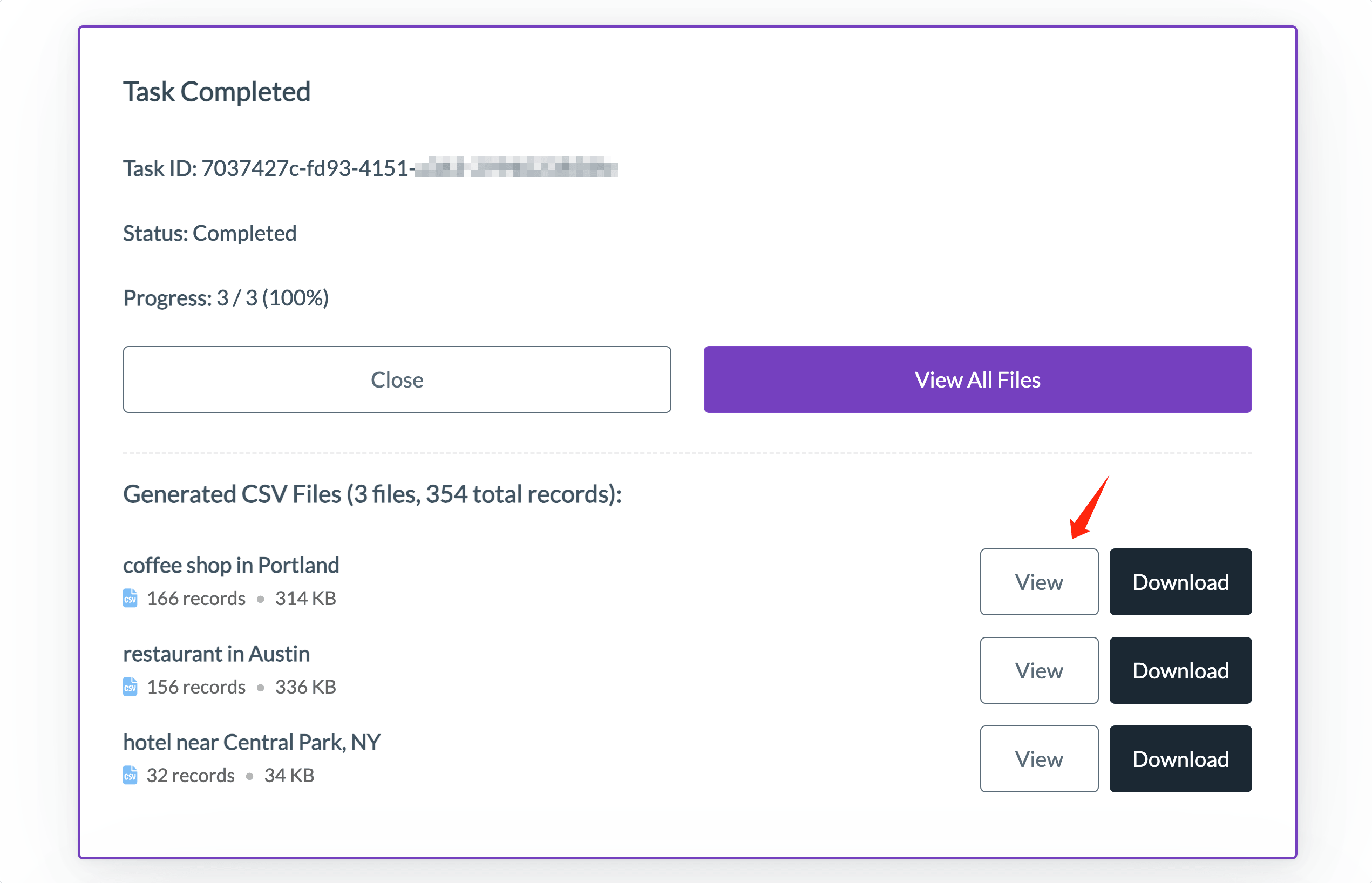
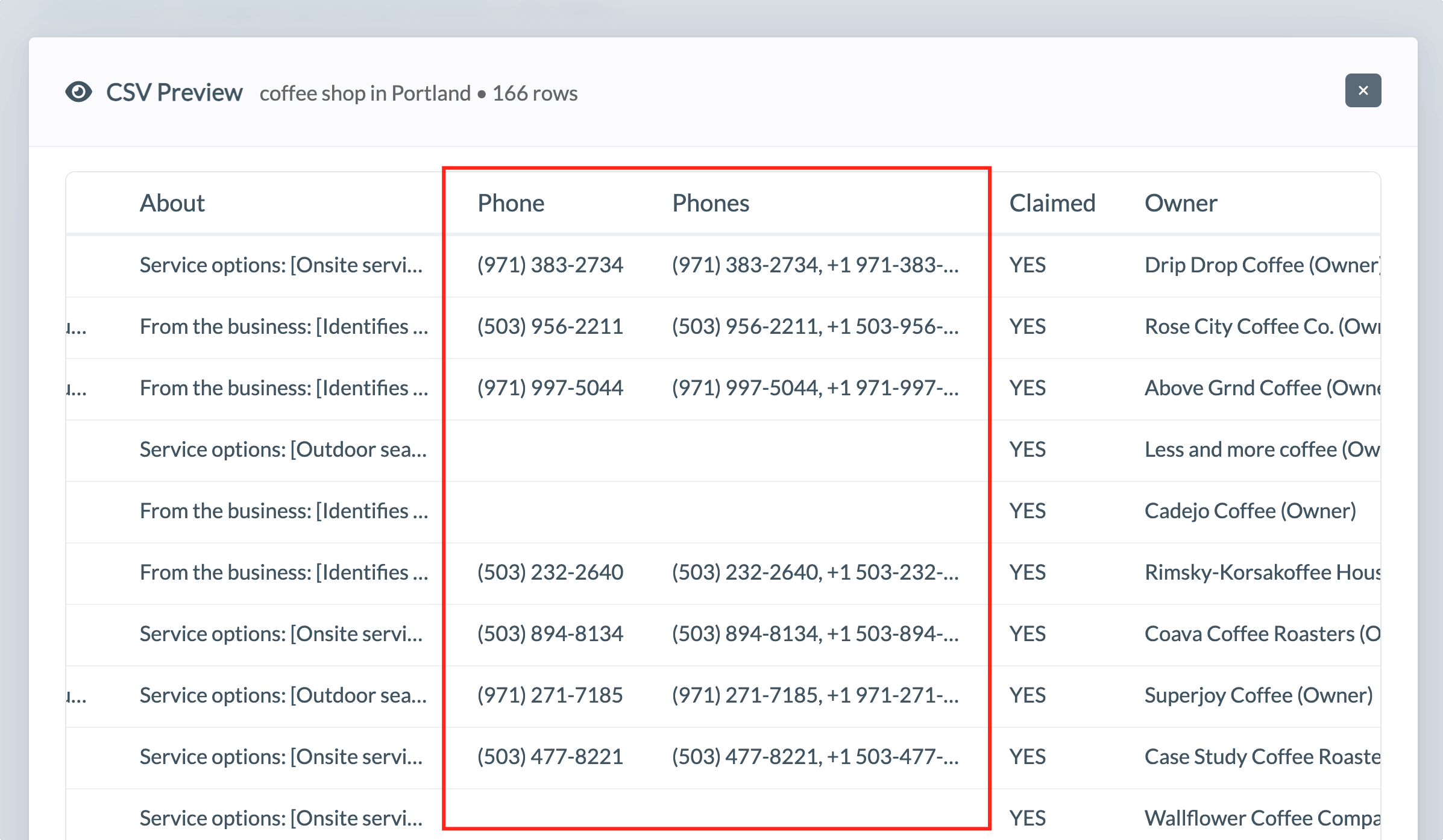
- Export phone numbers to CSV. One clean file, ready to open in any spreadsheet.
- Import into your CRM or outreach tools. Now your reps have a working call list.
The real win is bulk. One search for "dentist in Austin" is easy enough by hand. Thirty searches across ten categories and three cities is not, and that's exactly the job the Online Scraper is built for. Queue them together and come back to a finished file instead of a lost afternoon.
Phone numbers also pair naturally with emails for multi channel outreach. If you want both on the same list, there's a companion guide on how to extract emails from Google Maps, and a broader one on how to extract data from Google Maps if you want the full field list.
Use API for CRM and Automation
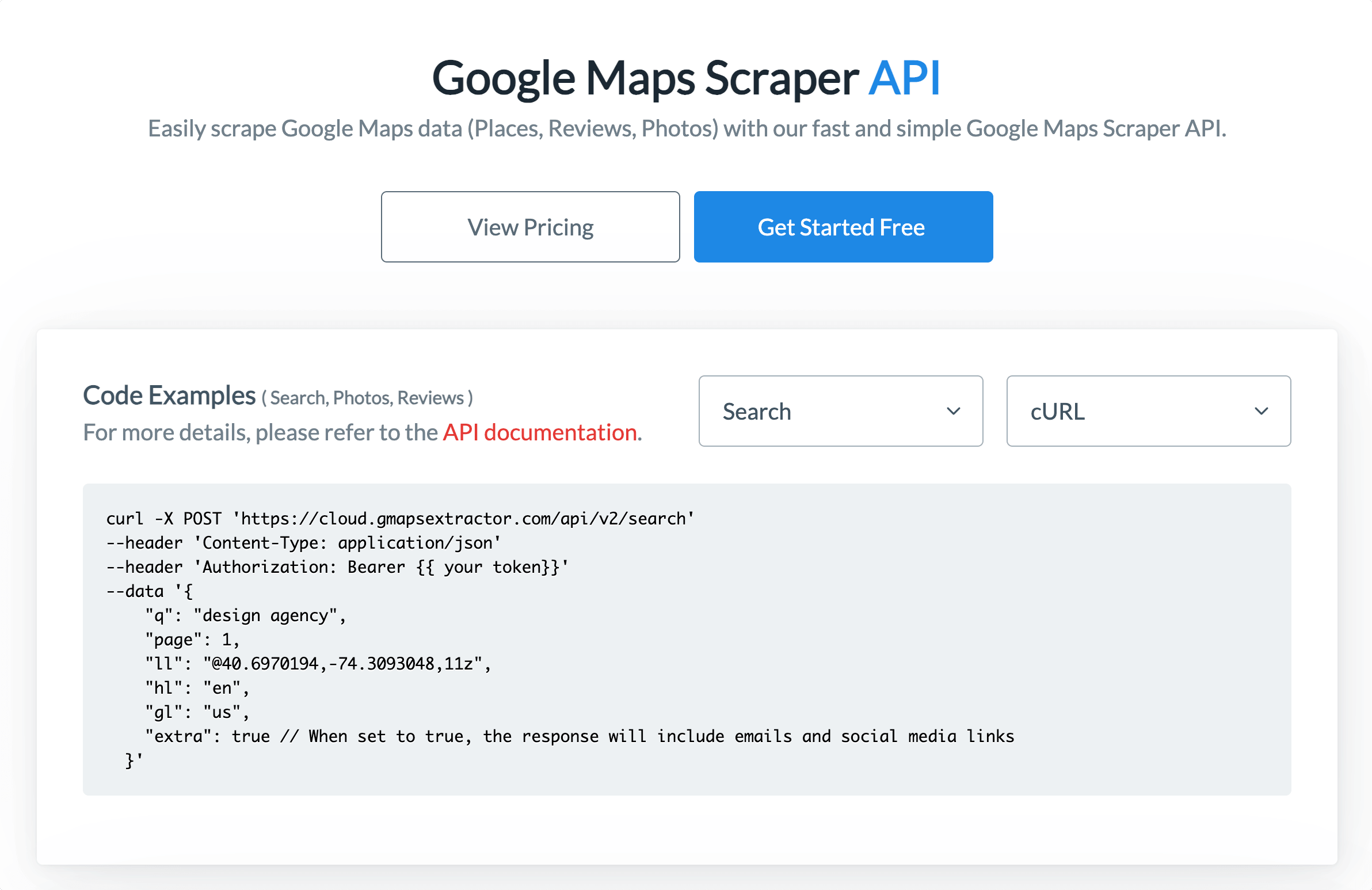
If the data needs to land inside a system rather than a spreadsheet, the API is how to extract phone numbers from Google Maps automatically, without anyone running a manual export. Use the Google Maps Scraper API. It returns JSON, so business details flow straight into your own tools.
It fits when you need:
- Lead enrichment, adding phone numbers and details to records as they come in
- Sales software that pulls fresh business data on demand
- Internal workflows built around live listing data
- A local business database you keep current over time
- CRM automation that runs on a schedule, no manual exports
- JSON output that drops into your existing pipeline
Rule of thumb: if you want a call list this week, use the Online Scraper. If you're building something that needs phone data on tap, use the API.
Browser Extension Option
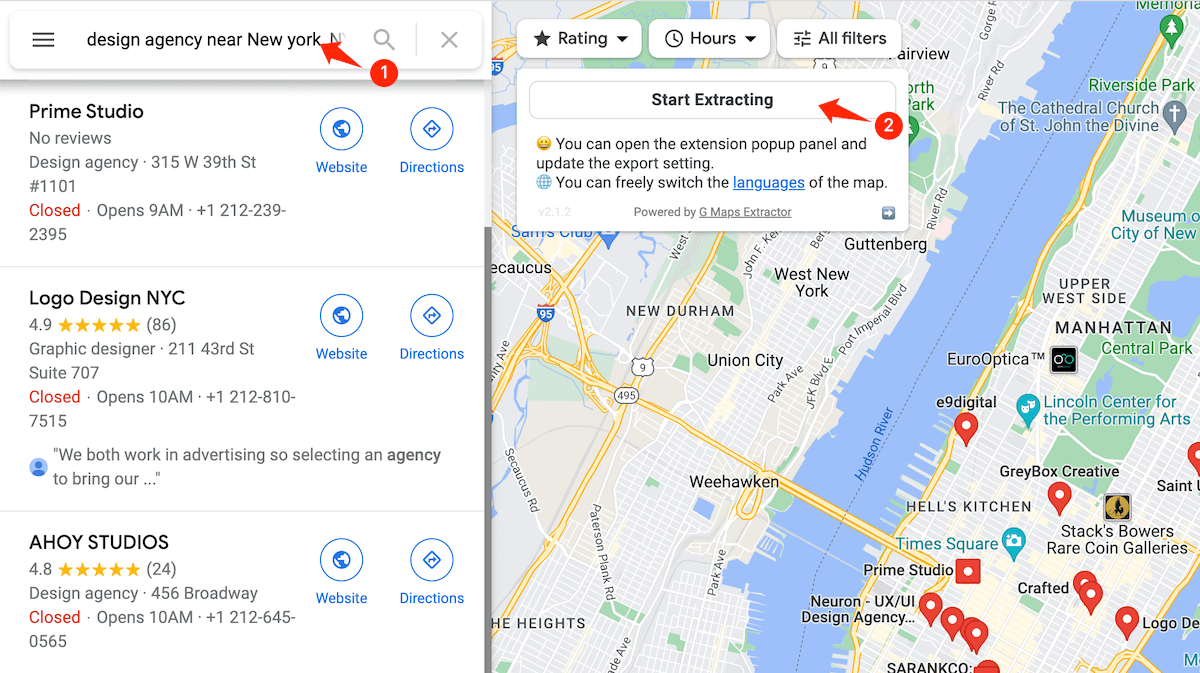
Prefer to work inside Google Maps? The browser extension still does that. You search the way you normally would, and it pulls the numbers and details off the listings on the page. It's a fair pick for a quick list off a search you're already running, though for large keyword jobs the cloud based Google Maps Scraper is usually faster. You can install the extension here.
Data Cleaning Tips
A raw export is a starting point, not a finished list, even once you know how to extract phone numbers from Google Maps at scale. A few minutes of cleanup makes the calling far more productive:
- Deduplicate businesses. The same company can appear across overlapping searches. Remove repeats by phone number or name so nobody gets called twice.
- Split searches by city and keyword. Smaller, focused jobs give cleaner results and make it easy to see which segment came from where.
- Verify phone numbers before outreach. Numbers change and listings go stale. A quick check saves your reps from dialing dead lines.
- Keep outreach relevant, not spammy. Call businesses your offer genuinely fits, follow the calling and messaging rules that apply to you, and honor do-not-contact requests. A focused list beats a huge one.
FAQ
Can I extract phone numbers from Google Maps?
Yes. Most listings show a public phone number, and a Google Maps phone number extractor collects them into a structured file instead of you copying each one by hand. That is the short version of how to extract phone numbers from Google Maps without doing it manually.
What else comes with the phone number?
Business name, address, website, category, rating, review count, and location. That context is what turns a list of numbers into a real prospect list you can sort and prioritize.
Can I export the numbers to CSV?
Yes. The Online Scraper can export Google Maps phone numbers to CSV, so you can open the file in any spreadsheet or import it into a CRM.
How do I extract phone numbers in bulk?
Run several keyword and location searches in the Google Maps Scraper and let them process in the cloud. It's built for bulk, so you can cover many categories and cities in one job.
Can I automate this into my CRM?
Yes. The Google Maps Scraper API returns JSON and fits lead enrichment, CRM automation, and scheduled workflows.
Conclusion
A good call list is one of the most direct tools in local sales, and Google Maps is one of the best places to build one. The numbers are public, sorted by category and location, and paired with the context that tells you which ones are worth a call.
Use the Online Scraper to build the list, clean and verify it before you dial, and switch to the API when you need phone data flowing into a system. However you get there, that is really the whole answer to how to extract phone numbers from Google Maps: pull them in bulk, clean them up, then put the time you saved into the calls themselves.
Start Google Maps Scraper Free | View Google Maps Scraper API